Home Office NAS Setup Guide: Complete Beginner's Walkthrough
Set up network-attached storage for your home office in 6 steps. From choosing hardware to configuring backups and security — everything a remote worker needs to centralise files, replace cloud subscriptions and protect data.
Power your home-office desk
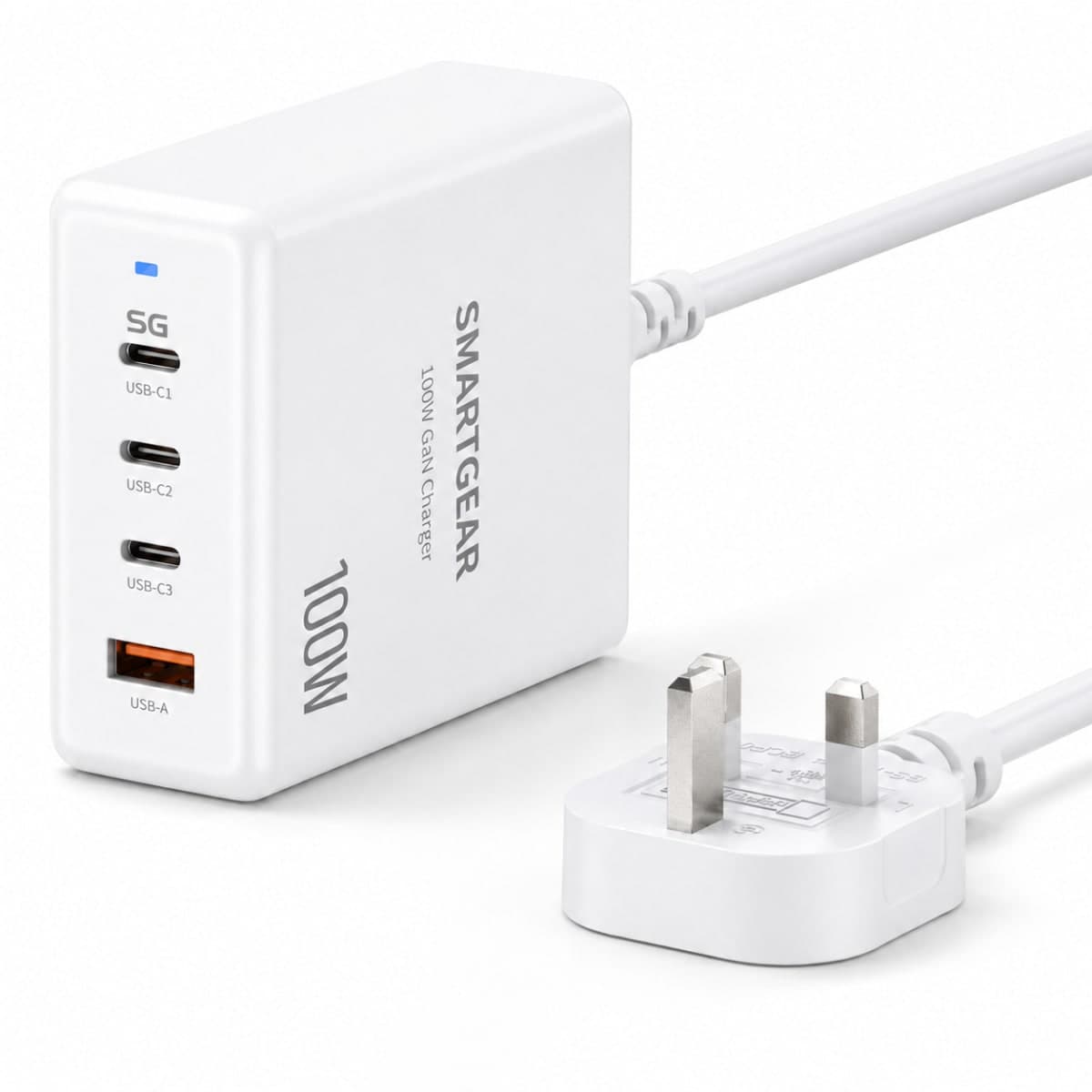
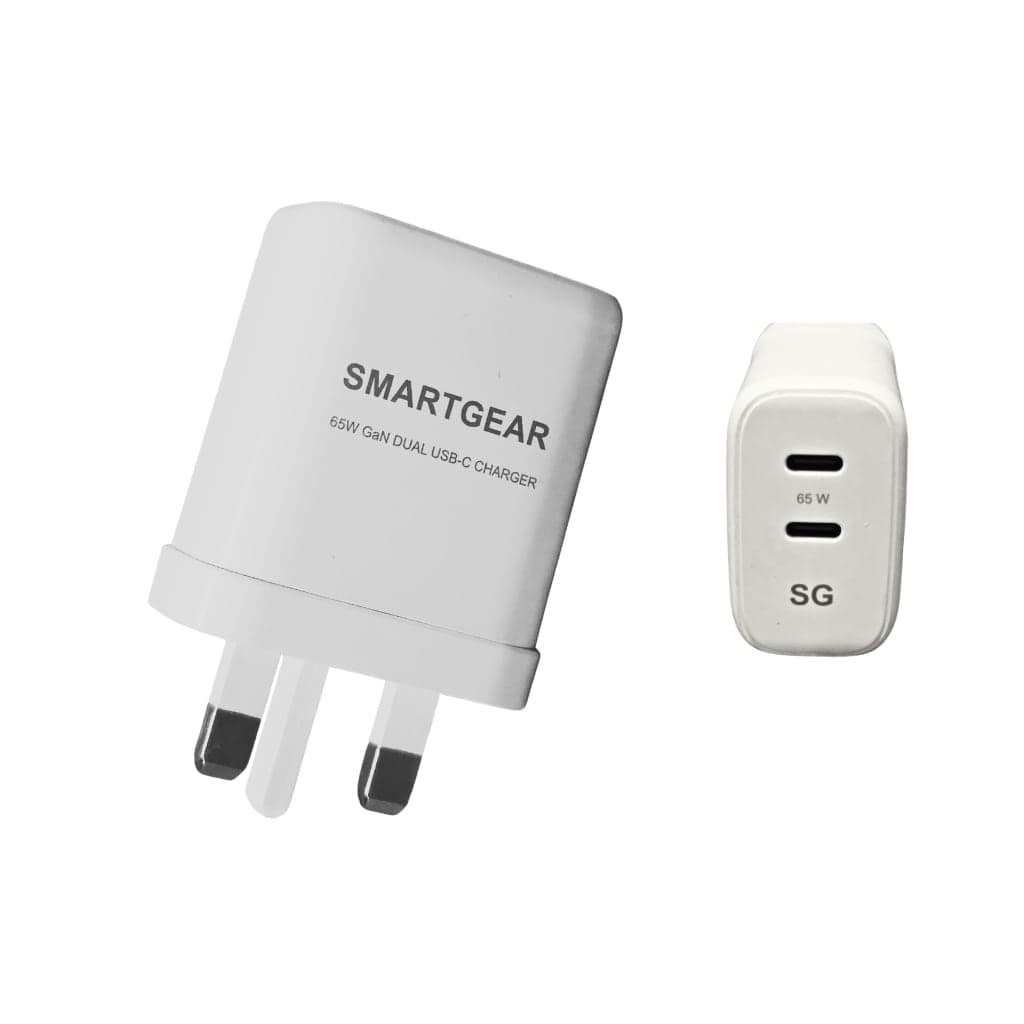
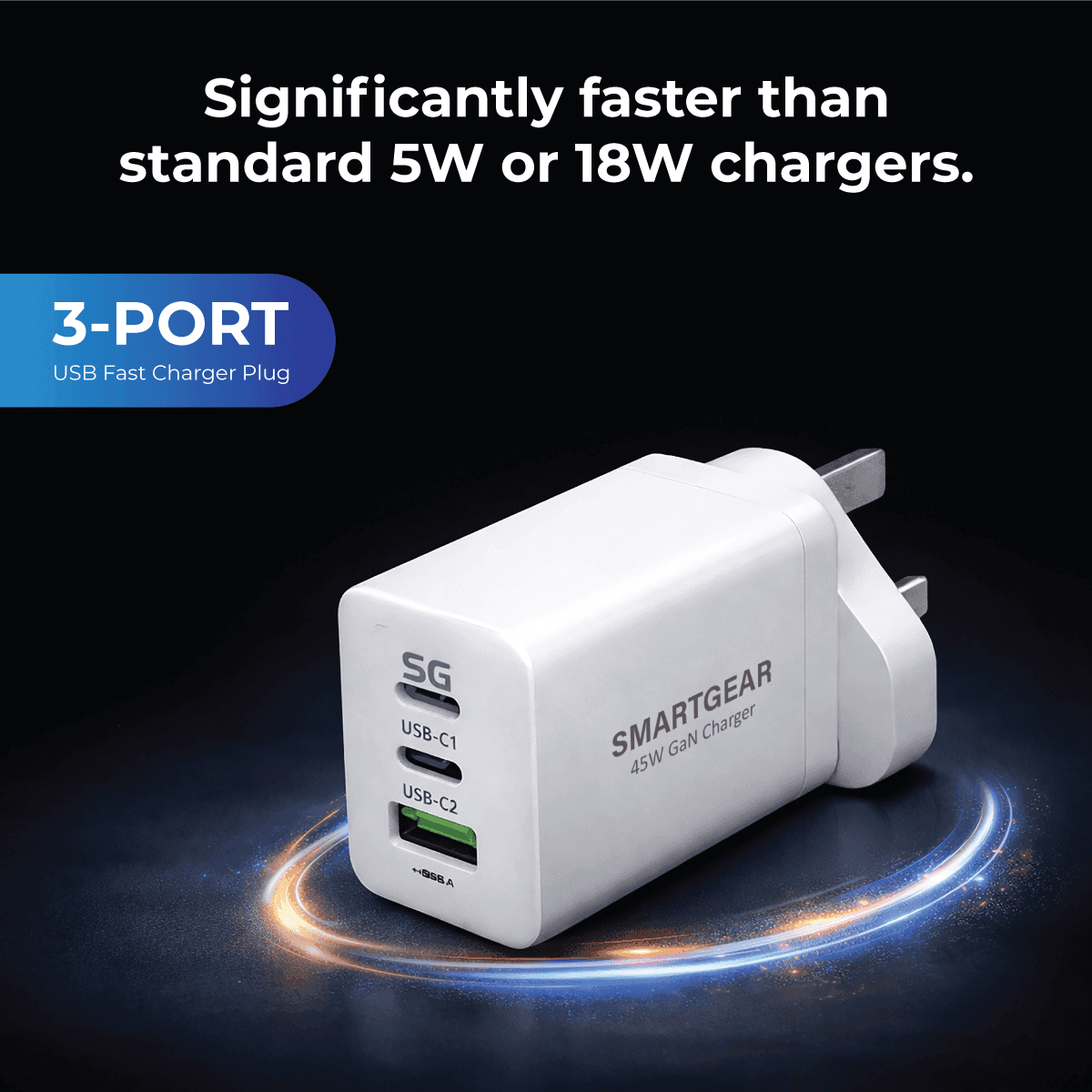
All productsOne GaN charger for the laptop, phone and accessories around your NAS, from £12.99. Free UK delivery.
6-Step Setup Guide
Choose Your NAS Hardware
How many bays do you need?
2-bay: Basic backup and file sharing (10–20 TB usable in RAID 1). 4-bay: Most home offices — good balance of capacity and redundancy (30–60 TB usable in RAID 5). 6+ bay: Power users with large media libraries or home servers.
What CPU matters?
For basic file storage: Intel Celeron N5105 or equivalent is perfect. For Plex transcoding or Docker containers: Intel N100 or better. For direct 4K video editing: Intel Core i5+ (UGREEN DXP6800 Pro).
Our picks
Budget: UGREEN DXP4800 Plus (~£399). Mid-range: Synology DS923+ (~£539). Premium: UGREEN DXP6800 Pro (~£799).
Select the Right Hard Drives
NAS-rated drives are essential
Use NAS-specific drives: Seagate IronWolf, WD Red Plus or Toshiba N300. These are designed for 24/7 operation, vibration resistance and RAID compatibility. Desktop drives will fail prematurely in a NAS.
Capacity per drive
4 TB: Budget option (~£80). 8 TB: Sweet spot for price/TB (~£120). 16 TB: Maximum capacity (~£250). For a 4-bay NAS in RAID 5 with 8 TB drives: 24 TB usable storage.
SSD caching (optional)
Add NVMe SSD cache to accelerate random reads. Useful if multiple users access the NAS simultaneously. 500 GB NVMe SSD (~£40) makes a noticeable difference.
Network Setup & Optimisation
Wired is non-negotiable
Connect your NAS via Ethernet, not Wi-Fi. Even Wi-Fi 7 can't match the consistency of wired. Use Cat 6a cable for 2.5GbE or 10GbE connections.
Router/switch requirements
For 1GbE NAS: any modern router works. For 2.5GbE: you need a 2.5GbE switch (~£30 for 5-port). For 10GbE: dedicated switch needed (~£100+). Most new NAS models include 2.5GbE built-in.
Remote access
All major NAS brands offer free remote access: Synology QuickConnect, QNAP myQNAPcloud, UGREEN UGOS Cloud. This lets you access files from anywhere without port forwarding.
RAID Configuration
RAID 1 (Mirror — 2 drives)
Two identical copies. 50% usable capacity. 1 drive can fail without data loss. Best for 2-bay NAS. Simple and reliable.
RAID 5 (Parity — 3+ drives)
Data + parity distributed across drives. Capacity = (n-1) × drive size. 1 drive can fail. Best for 4+ bay NAS. Good balance of speed, capacity and protection.
SHR/BTRFS (Synology)
Synology Hybrid RAID allows mixing drive sizes. More flexible than traditional RAID. Recommended for Synology users who may upgrade drives incrementally.
Important
RAID is NOT backup. It protects against drive failure but not against accidental deletion, ransomware or fire. Always maintain an offsite backup.
Essential Apps & Services
File sync (replace Dropbox/Google Drive)
Synology Drive, QNAP Qsync, UGREEN UGOS Sync. Sync folders between laptop, phone and NAS automatically. Typically free with unlimited storage.
Photo management (replace Google Photos)
Synology Photos, QNAP QuMagie, UGREEN AI Photos. AI-powered face recognition, location tagging and smart albums. Your photos stay on YOUR hardware.
Backup automation
Set up automated backups: laptop → NAS (via sync client), phone → NAS (via mobile app), NAS → cloud (via Backblaze B2 or similar). Follow the 3-2-1 rule: 3 copies, 2 media types, 1 offsite.
Media server
Plex or Jellyfin turn your NAS into a personal Netflix. Stream your media library to any TV, phone or tablet in the house.
Security Hardening
Enable 2FA on admin account
All NAS platforms support TOTP-based 2FA. Enable it immediately. This prevents unauthorised access even if your password is compromised.
Disable default admin account
Create a new admin user with a strong password, then disable the default "admin" account. This stops automated brute-force attacks.
Enable auto-block
Configure auto-blocking to ban IPs after 5 failed login attempts. Synology, QNAP and UGREEN all support this natively.
Keep firmware updated
NAS firmware updates patch security vulnerabilities. Enable automatic updates or check monthly. Subscribe to your NAS vendor's security advisories.
Frequently Asked Questions
Is a NAS worth it for a home office?
Yes, if you: (1) have more than one device that needs access to the same files, (2) want to stop paying for cloud storage subscriptions, (3) need automated backups, or (4) work with large files (video, photos, design). A 2-bay NAS with 2 × 4 TB drives costs about the same as 2 years of Google One 2 TB.
How loud is a NAS?
Modern NAS devices are very quiet. In sleep mode: silent. During active use: 20–30 dB (quieter than a refrigerator). UGREEN models are particularly quiet due to their fanless designs. Placing the NAS in a cupboard or under a desk makes it effectively inaudible.
How much electricity does a NAS use?
A typical 4-bay NAS uses 25–40 W under load and 10–15 W in hibernate mode. Running 24/7, that's roughly £25–50/year in UK electricity. NAS devices automatically hibernate when not in use, reducing actual costs further.
Can I access my NAS remotely?
Yes. All major NAS brands offer free remote access services: Synology QuickConnect, QNAP myQNAPcloud, UGREEN UGOS Cloud. You can access files from your phone, laptop or tablet anywhere with internet. Some also support VPN for more secure remote access.
Do I need technical knowledge to set up a NAS?
Basic setup (storage, file sharing, backup) is wizard-guided and takes 20–30 minutes. Advanced features (Docker, VPN, RAID migration) require some technical knowledge. Our step-by-step guide above covers everything a home office user needs.
NAS vs paying for cloud storage — which is cheaper?
Long-term, NAS is significantly cheaper. Example: 10 TB cloud storage costs ~£80/month (Google Workspace). A 2-bay NAS + 2 × 8 TB drives costs ~£450 one-time. The NAS pays for itself in 6 months and lasts 5+ years. Plus, your data stays in your home.